
How to avoid buffering in IPTV Practical Fixes Guide
IPTV delivers live television, movies, and series through the internet rather than cable or satellite. A fast plan helps, yet it cannot promise steady playback every time.
IPTV buffering often appears during live events or evening viewing. Heavy network demand, ISP throttling, poor routing, and server load can slow content delivery. Regional limits may also affect your streaming experience.
HD viewing generally needs at least 10 Mbps. 4K viewing usually needs 25 Mbps or more. These figures offer a useful starting point when you check internet speed and review an unstable connection.
This guide covers practical steps for your router, Ethernet cable, app, device, video quality, and provider. It also explains when a VPN may help with routing or throttling. However, using VPN tools cannot repair every service fault.
Ready to fix IPTV buffering? The next steps focus on simple checks first, then deeper service and network issues. A careful review can improve streaming quality and create a more reliable viewing experience.
Key Takeaways
- HD viewing needs about 10 Mbps.
- 4K viewing needs about 25 Mbps.
- Live events can raise server demand.
- Router, app, and device checks matter.
- A VPN may improve routing.
- Provider faults need provider support.
Understanding Why IPTV Buffers
IPTV buffering starts when a stream cannot deliver video data fast enough for smooth playback. A brief pause may point to a weak link, yet the source can vary. The right clue helps you choose a useful fix.
Common Signs of IPTV Buffering
Watch for a spinning wheel, a loading message, pixelation, distorted images, or choppy video. Sound may also fall behind the picture. A sudden drop in quality can signal connection strain, even when other online tasks seem normal.
- One channel pauses while others play well.
- Every stream struggles during busy evening hours.
- Audio and video lose sync after a quality change.
Internet, Server, and Device Causes
Slow internet, network congestion, or an unstable connection can limit delivery speed. Heavy server demand may affect one service, channel, or provider. An older device, outdated app, full cache, or weak hardware can create similar issues despite a good speed test.
Compare channels, apps, devices, and viewing times. This simple check shows whether the problem sits with your home setup or the IPTV service. A VPN may change routing, but it will not repair faulty content servers.
How to avoid buffering in IPTV: Check Your Internet Connection
Start with a clear view of your internet connection. A strong plan may still show weak performance during busy evening hours. Run Speedtest several times during the day, then repeat the check at peak viewing time.
One result shows a moment, not the full story.
Test Your Download Speed and Connection Stability
Compare results near the router with results beside the television. A large difference may reveal weak Wi-Fi signal strength. Note download speed, upload speed, and sudden drops. This check can expose connection issues before you change an app or service.
Match Internet Speed to HD and 4K Streaming
HD streams need at least 10 Mbps. 4K streams need 25 Mbps or more. Extra bandwidth supports phones, laptops, and other household devices. A crowded network can cause video quality problems even with a fast plan.
Manage Bandwidth Across Connected Devices
Pause large downloads, cloud sync, game sessions, and device updates during viewing. These tasks compete with streaming content. If problems continue, use this practical fix IPTV buffering checklist:
- Check internet performance at noon and evening.
- Test beside the router and viewing location.
- Record speed changes across several tests.
| Viewing mode | Suggested speed | Extra bandwidth advice |
|---|---|---|
| HD | 10 Mbps minimum | Allow room for other devices |
| 4K | 25 Mbps minimum | Pause heavy network tasks |
Use Ethernet and Improve Your Wi-Fi Signal
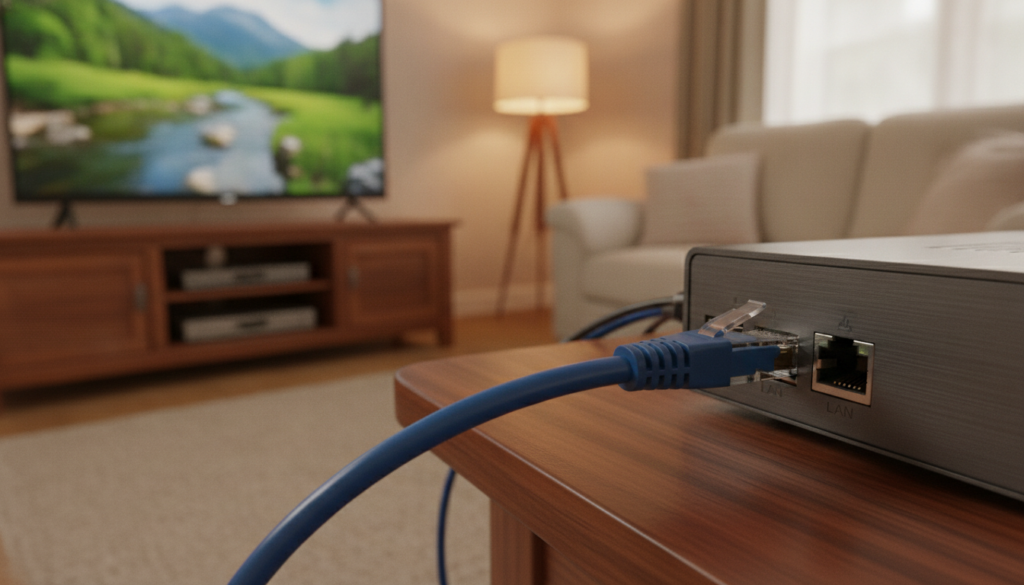
A direct Ethernet path gives your television a cleaner route for live video. It usually offers steadier bandwidth, less interference, and lower latency than Wi-Fi. This setup can reduce IPTV buffering during busy viewing periods.
Why a Wired Connection Helps Reduce IPTV Buffering
Walls, distance, and nearby electronics can weaken a wireless signal. Packet loss may then create buffering, pixelation, or sudden quality drops. Connect a Smart TV, FireStick, or Android TV box directly with a network cable whenever practical.
Place the router near the main device when a cable cannot reach. A central, elevated spot works best. Keep it away from thick walls, enclosed cabinets, microwaves, and cordless phone bases.
Router Placement and Wireless Alternatives
Move the router closer, choose the 5 GHz band for short-range speed, or select 2.4 GHz for greater reach. An extender can help distant devices, though its performance depends on router placement. A VPN cannot repair weak signal issues or faulty hardware.
| Setup | Main benefit | Best use |
|---|---|---|
| Ethernet cable | Stable connection | TV beside router |
| 5 GHz Wi-Fi | Higher speed | Nearby devices |
| 2.4 GHz Wi-Fi | Longer range | Distant rooms |
Optimize Your Router and Home Network
Your router acts as a traffic officer, directing bandwidth when several home devices compete. Simple settings can give live streaming a steadier path during downloads, gaming, or video calls.
Prioritize Traffic With Quality of Service Settings
Begin with Quality of Service, or QoS. Open the router app, find QoS, and assign the television or streaming box a high priority. Correct device selection matters. QoS works best when the router recognizes the right hardware.
Dual-band and tri-band routers spread devices across separate wireless lanes. MU-MIMO also supports several active devices at once. These features help protect connection quality when phones, laptops, and smart home gear share the network.
A weekly modem or router restart can refresh the connection and clear temporary issues. Unplug both units, wait about one minute, then reconnect them. This simple routine may improve speed, signal strength, and data flow.
- Enable QoS for the main viewing device.
- Use separate bands for busy devices.
- Restart network hardware each week.
QoS cannot fix an overloaded provider or raise ISP speed limits. Still, these steps can reduce IPTV buffering across a crowded home network.
Optimize Your Streaming Device and IPTV App
Before changing your plan, inspect the small screen-side tools that shape playback. An aging device, crowded storage, or stale app data may trigger delays. A quick reset often restores smoother performance without touching your subscription.
Clear the IPTV App Cache
Temporary files can slow an app and create playback errors. Android users can select Settings > App Settings > IPTV App > Storage > Clear Cache. FireStick users can select Settings > Applications > Manage Installed Applications > IPTV App > Clear Cache.
“A clean cache gives your player a fresh start.”
Restart the app after clearing its cache. This action removes temporary data while keeping subscription details intact.
Restart and Update Your Device
Restart the device, then install current system and app updates. Updates improve compatibility, repair bugs, and support newer video formats. They may also improve playback quality when network conditions remain steady.
Switch Players or Video Decoders
One player may handle a playlist better than another. Test IPTV Smarters, TiviMate, or Televizo when crashes or freezes continue. Hardware and software decoder options also help identify format-related problems. These tests can fix IPTV buffering and improve the streaming experience.
Adjust Video Quality and Playback Settings
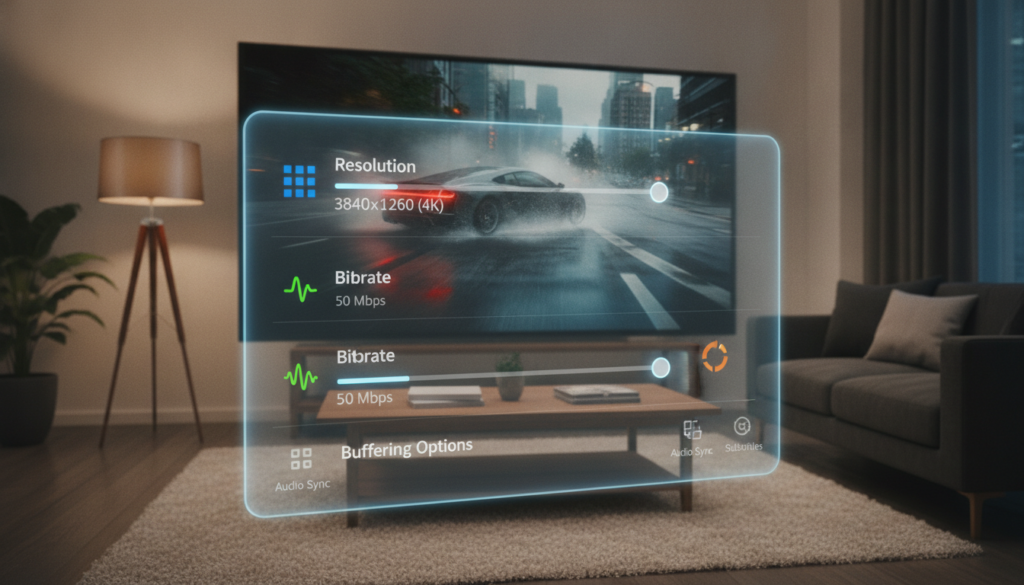
Picture clarity can hide a bandwidth problem until a busy evening exposes it. A 4K stream carries far more data than 1080p or 720p, so shared internet plans may struggle. Lower quality can steady IPTV playback while you test the connection.
Match Resolution With Available Speed
Choose 1080p first, then try 720p if buffering continues. Watch one channel for several minutes. If playback stays smooth, raise the setting later. This test shows whether resolution, rather than the service, causes the issue.
Test Decoder Modes
Hardware decoding uses the device chip; software decoding uses the app. Different formats may favor one mode. Change one setting at a time, restart the player, and compare performance across two streams. Keep notes about each result.
Lower quality is a diagnostic step, not a permanent compromise.
- Check resolution during busy viewing periods.
- Test hardware and software decoder modes.
- Compare separate streams before changing providers.
Once IPTV streaming feels stable, restore higher quality. This approach improves the viewing experience while helping identify settings-related issues.
Evaluate Your IPTV Service and Provider
A fast home setup cannot guarantee a steady stream when the source has trouble. Check the service before changing more network settings.
Play several channels at the same time. If one stream pauses while others remain smooth, the provider may have a content or server fault. This test helps separate local connection issues from service problems.
Recognize Provider-Side Buffering Problems
Repeated buffering across multiple devices and apps points toward overloaded servers, maintenance, or weak provider performance. A capable device and fast internet cannot correct poor uptime or limited server capacity.
“A strong speed test does not prove a strong provider.”
Check Server Load During Peak Viewing Times
Record each problem’s exact time, channel, device, and error message. Evening demand may raise server load and overlap with ISP throttling. Share these details with support before making a change.
- Compare HD and 4K quality.
- Review uptime and regional server coverage.
- Test support response and resolution time.
Reliable IPTV services offer stable streaming, clear quality, and helpful support. A VPN may change routing, but it cannot repair failing provider infrastructure.
| Test result | Likely cause | Best next step |
|---|---|---|
| One channel pauses | Stream or server fault | Report the channel |
| All channels pause | Service overload | Check peak-hour patterns |
| Support ignores reports | Weak provider service | Compare another service |
Use a VPN Carefully for IPTV Streaming
A VPN can change the route between your home network and a streaming provider. It may hide viewing activity from an ISP and limit throttling during busy evening hours. It can also help with regional access when the selected server matches the service area.
Routing, Throttling, and Server Choice
Choose a nearby, lightly loaded server first. Shorter distance often lowers latency and protects video quality. WireGuard offers low overhead and strong speed for HD playback. UDP usually feels faster, while TCP may stay steadier on a weak network.
VPN Tools Worth Testing
AstrillVPN includes OpenWeb, StealthVPN, Smart Mode, App Filter, Site Filter, Kill Switch, Auto-Reconnect, and VPN Leak Test features. These tools support flexible access across devices and apps.
Know When a VPN Can Hurt Playback
Encryption, distant servers, crowding, or a slow provider can increase buffering. Compare playback with and without the VPN. If results worsen, disconnect it and review the local connection or service.
| VPN choice | Best use | Watch for |
|---|---|---|
| WireGuard with UDP | High-speed HD streaming | Weak network stability |
| Nearby server | Lower latency | Heavy server load |
| TCP mode | Unstable connections | Lower peak speed |
Use Advanced Network Diagnostics
A speed test can look healthy while tiny network faults disrupt live video. Packet loss, delayed packets, and high latency may trigger IPTV buffering, even with enough download speed. These faults often appear during peak internet use or along a weak route.
Check for Packet Loss and High Latency
Wireshark can inspect traffic between a device and the service. Look for retransmissions, delayed packets, and unstable paths. A quick test across several devices can show whether the fault affects one app or the wider network.
Record the time, channel, device, and result. This data gives support teams useful evidence when streaming issues continue. Test with the VPN active, then repeat with it off. A clear comparison shows whether routing affects performance.
Try DNS Optimization for Faster Connections
Open router settings and compare Google Public DNS at 8.8.8.8 with Cloudflare DNS at 1.1.1.1. Faster domain lookup may shorten startup time. DNS does not add VPN encryption, unlock regions, or repair overloaded servers, weak Wi-Fi, low bandwidth, or stale cache files.
| Check | Useful tool | What it reveals |
|---|---|---|
| Packet loss | Wireshark | Retransmissions and drops |
| DNS speed | 8.8.8.8 or 1.1.1.1 | Lookup response time |
| Route quality | VPN on and off | Path-related playback changes |
Consider Hardware Upgrades for Better IPTV Performance
Hardware changes make sense when tests point toward weak coverage or an aging player. Start with the limit you found, rather than buying every new gadget. A Wi-Fi extender can fill one dead zone, while a mesh system gives broader coverage across a larger home.
A Wi-Fi 6 router handles many active devices more efficiently than older standards. It may improve speed when phones, laptops, and smart TVs share the same network. Extra RAM and storage also help an older device manage an app, system tasks, and video data at once.
“Buy hardware for a proven weak point, not for a guess.”
A dedicated Android TV box may deliver smoother streaming than an old Smart TV or busy computer. Some models use playback algorithms that help reduce buffering. Run tests with the current service first, then compare results after each upgrade. An Ethernet cable remains the strongest choice when wireless dead zones cause packet loss.
- Choose mesh coverage for several weak rooms.
- Choose Wi-Fi 6 for crowded networks.
- Choose a dedicated player for aging devices.
- Check provider results before replacing suitable hardware.
Conclusion
Reliable playback starts with a calm, step-by-step check. First, check internet speed: aim for 10 Mbps for HD and 25 Mbps for 4K. Test Ethernet, pause heavy downloads, then compare results across viewing times.
Next, inspect the device and app. Clear cache, update apps, review settings, and restart the router each week. Lower video quality if buffering continues. Compare channels, devices, and service behavior before buying hardware or switching provider.
A VPN may help with throttling, route limits, or regional blocks. It cannot repair every IPTV service or server fault. Note service issues before choosing new equipment.
Use evidence, not guesswork, to fix IPTV buffering. This process can reveal connection problems and support a smoother streaming experience. Choose reliable IPTV services with responsive support and stable access. Small checks often produce the biggest gains for everyday viewing.