How to Setup EVDTV on TVs: Step-by-Step Guide Today
Ready for a clearer path? This guide covers EVDTV Plus V2, a free Android application created by arabone for video and multimedia use. The latest listed version is 2.2.4, with 4,890 downloads recorded by its source website since June 18, 2020.
Before starting, note that the app does not include movies, series, channels, or other media. Users must provide authorized material. Any IPTV service, file, or streaming source should come from a trusted provider.
The steps ahead cover download checks, Android TV settings, content entry, playback tests, and safe use. The publisher also states there is no third-party affiliation, so verify each service and support channel first. A careful start can prevent many viewing problems later.
Key Takeaways
- EVDTV Plus V2 is a free Android application from arabone.
- Version 2.2.4 is the latest listed release.
- The program does not supply media content.
- Authorized sources remain the user’s responsibility.
- Check providers, files, and support details before use.
How to Setup EVDTV on TVs
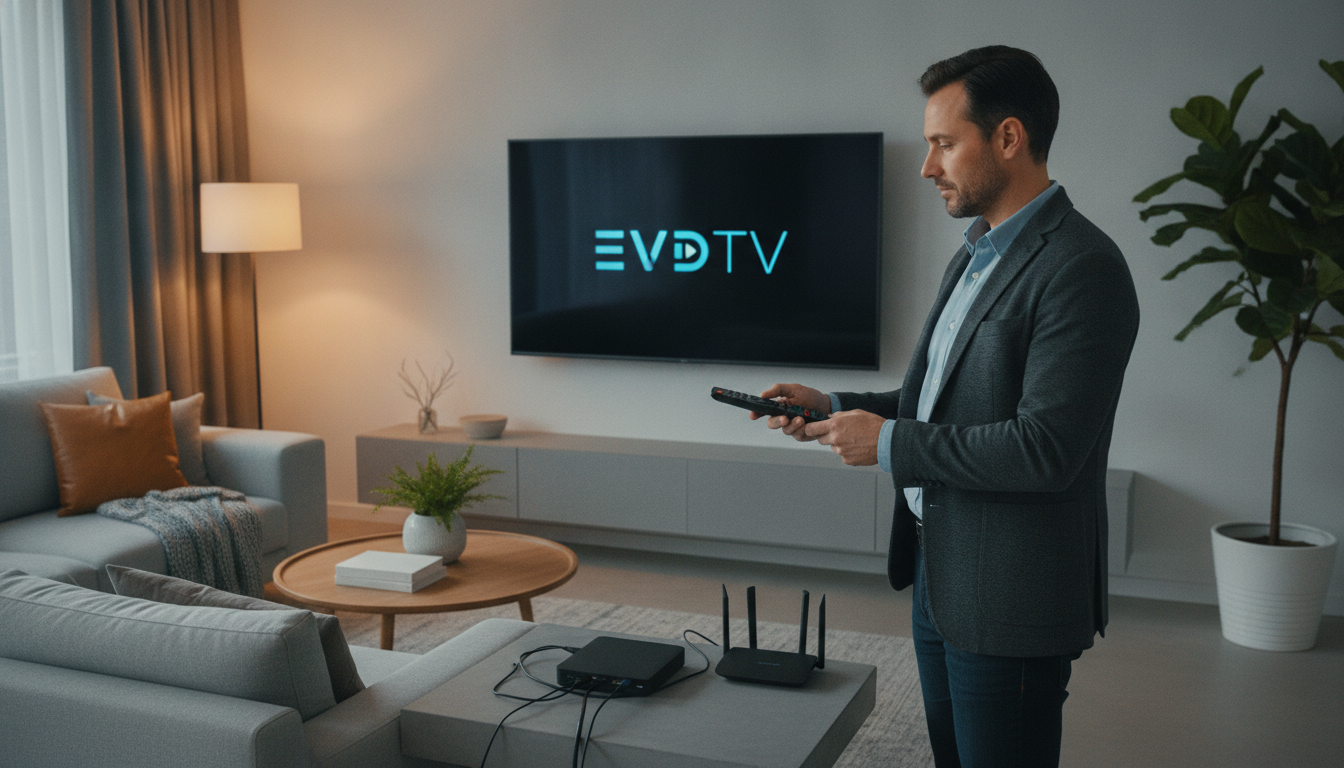
Start with a quick compatibility check. A smooth viewing experience depends on the screen, network, account, and Android hardware working together. Confirm each item before the app search begins.
Check Your Android TV, Smart TV, or External Unit
Look for built-in Android TV, or choose an external Android device such as an Android TV Box or Fire TV Stick. EVDTV Premium lists support for Android devices, Android Smart TVs, Android TV Boxes, and Fire TV Stick.
A standard television needs an available HDMI port. The screen or monitor should also support HDCP. Keep one HDMI cable and a nearby power outlet ready. An Android phone can help with account entry, but it is not required for every setup.
Prepare Wi-Fi, Google Account, and HDMI Connections
Android TV requires stable Wi-Fi Internet and a Google Account. Test the network near the screen, then confirm the correct HDMI input. These checks can prevent delays during installation and playback.
- Stable Wi-Fi connection
- Active Google Account
- HDMI port, cable, and HDCP support
- Compatible power source
| Screen type | Extra equipment | Key check |
|---|---|---|
| Built-in Android TV | Power connection | Wi-Fi and Google Account |
| Standard smart television | Android TV Box | HDMI and HDCP support |
| Monitor | Android TV Box and HDMI cable | HDMI port and power access |
Connect and Set Up Your Android TV System
Give the viewing system a clean start. An external android device uses HDMI for the television or monitor and needs a nearby power socket. The process stays simple: select the matching Source or Input option.
Pair the Remote and Choose the Input
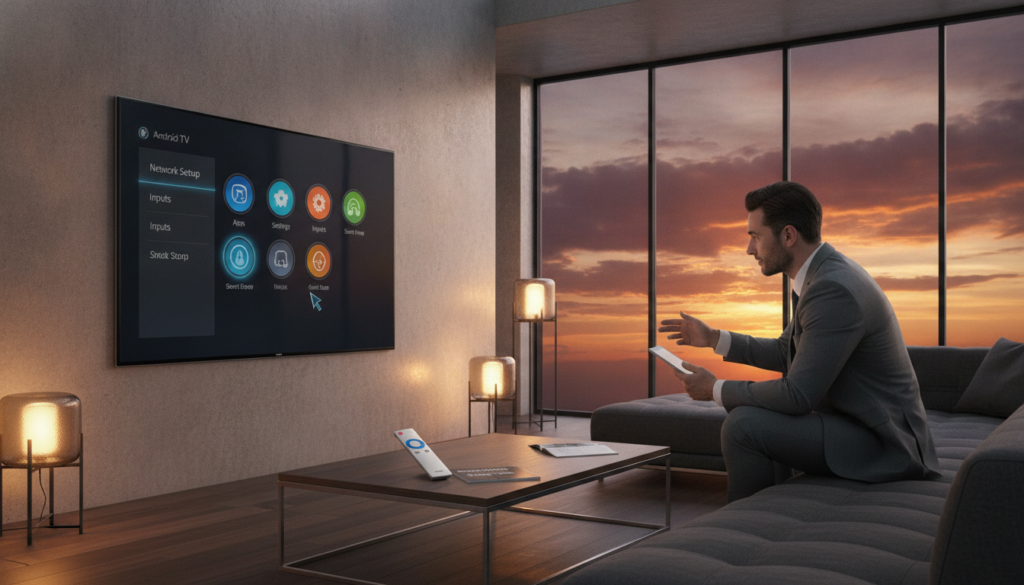
Hold the remote near the device and follow the pairing prompt. A check mark appears when control succeeds. If no signal shows, review the HDMI cable, power plug, and selected input.
Use Quick Start or Manual Entry
With an Android phone, open the Google app and say, “set up my device.” Enter the code shown on the screen, then select the television. Quick Start can sign in with the Google Account and join the Wi-Fi network used by the Android phone. Without an Android phone, choose Skip and enter details with the remote.
Finish Updates Before Apps
Manual configuration needs Wi-Fi, Google Account access, and system updates. Allow time for downloads before the player is configured. This android device works best with current software and reliable support.
| Task | Screen result | Next action |
|---|---|---|
| Connect HDMI and power | Android TV start screen | Choose Source or Input |
| Pair the remote | Check mark appears | Continue with Quick Start |
| Apply system updates | Update notice or progress bar | Wait before app setup |
Download and Install the EVDTV App
A careful listing check protects your screen from the wrong installer. Search Google Play for the official EVDTV Plus V2 entry, then compare its displayed 2.2.4 version with the source website details. The listed update date is August 4, 2026.
Confirm the Listing and Permissions
The source website says its installation button redirects users to Google Play. This route offers stronger account support and shows required permissions before installation. Check the package identifier: com.evdtvplus.evdtvplusiptviptvbox.
Do not confuse this listing with EVDTV Premium, which the third source attributes to Abu_abdulrahman. The names look similar, but the publisher details differ.
Complete Installation Safely
- Open the verified Google Play listing.
- Select Install after reviewing permissions.
- Wait for the process to finish.
- Open the app and confirm basic media access.
A file from outside Google Play needs extra care. Scan every download with trusted antivirus software. The publisher warns that a broken link may trigger malware detection. Stop if the package, permissions, or listing details seem unusual. Later, add only authorized IPTV service details through your preferred IPTV player.
Configure EVDTV for Viewing
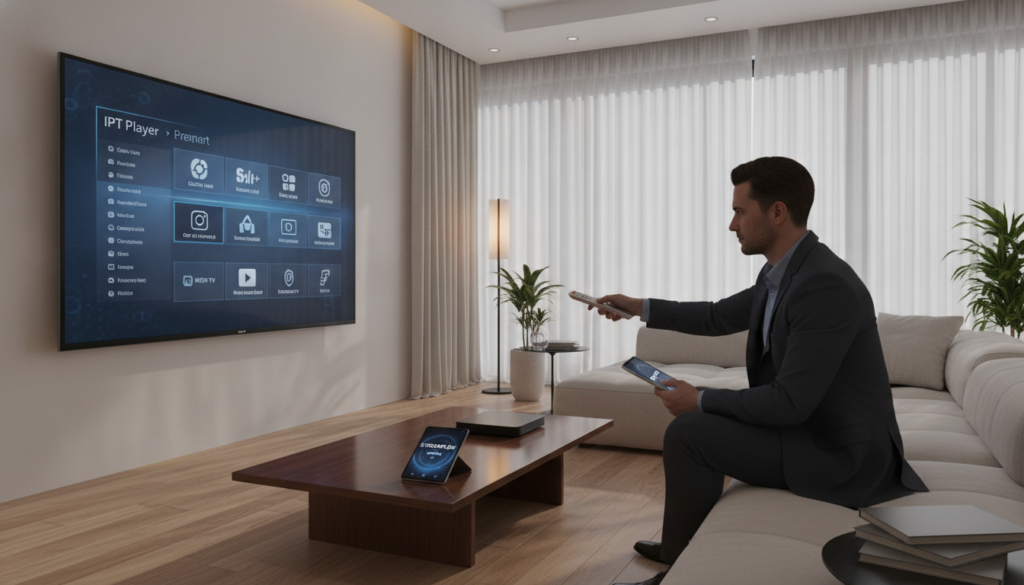
Your viewing setup needs a trusted content source before playback begins. EVDTV Plus V2 supplies no channels, movies, series, or other media. Add only playlist details from a legitimate provider, and confirm that your account permits every stream.
Add Authorized Service Details
Check the server address, login name, password, and playlist format before saving details. Keep provider support information nearby in case credentials fail. Never use an IPTV service for copyrighted material without permission.
Choose a Playback Option
EVDTV Premium is described as a broadcasting app for server users. It supports live broadcasts, movies, and series. Try its internal high-spec media player first. An external media player may work better with a preferred format or remote.
Compare both options with your screen, audio system, and network. A stable IPTV player can reduce delays during live viewing. Test one channel before adding more service details.
Adjust Viewing Preferences
Where available, enable the EPG for program times. Select English or Arabic, then turn on subtitles when needed. Family protection can limit unsuitable titles for younger viewers. Visit the official service page for current details.
Stream Movies, Series, and Live Content Smoothly
Once your source is ready, a few smart checks can improve viewing quality. EVDTV Plus V2 organizes authorized live broadcasts, movies, and series, but it does not supply media. Keep provider details separate from the app, and test one stream first.
Use the EVDTV Controls and Content Library
Use the search tool, EPG guide, subtitles, and remote control for easier browsing. The internal high-spec media player suits many streams. An external player may handle a difficult format with better results.
“EVDTV Plus V2 does not include media or content.”
If a playlist fails, check network strength, EPG data, subtitle settings, and the selected IPTV service. Confirm the installed version is 2.2.4, listed as updated August 4, 2026.
Troubleshoot Playback, Downloads, and Support Issues
Check that each file finished its download and passed a trusted security scan. Contact provider support for account errors. For app concerns, use the publisher’s support details. GameLoop offers a large-screen PC alternative, while Android TV remains the primary route.
| Issue | First check | Useful action |
|---|---|---|
| Buffering | Network strength | Test one IPTV stream |
| Missing guide | EPG data | Refresh the playlist |
| Playback error | Player choice | Try an external player |
Conclusion
Give your viewing system one final safety check. Confirm stable Wi-Fi, a Google Account, HDMI access, a compatible device, and a paired remote. An android phone can speed Quick Start, yet remote entry remains available through the Android TV system.
Open EVDTV only after the app listing, version 2.2.4, permissions, and player settings look correct. Review the official website and keep legitimate support details nearby.
This app serves as a platform for user-provided media, not a subscription or content provider. Use an authorized iptv service, protect downloaded files, and stop when a source seems unsafe.
Permission-based streaming supports creators and reduces account risk. Finally, test one stream first. A careful finish makes future viewing easier and safer.